“Constants” are settings that represent where certain information can be found in the specific files that this payroll helper uses.
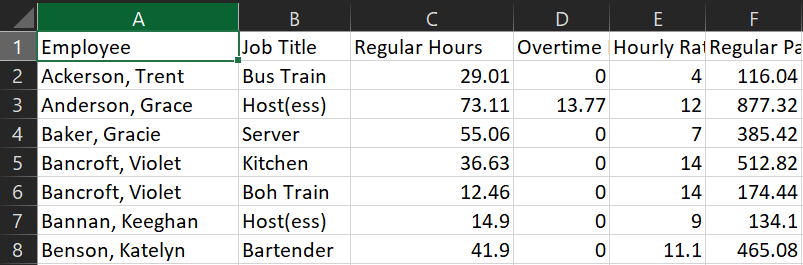
For example, Lets Look at the Toast Labor Summary CSV file.
You can see that Column A (technically column 0) contains the staff members, and chances are that won’t change for quite some time, so we can consider that a constant, and tell the payroll helper where it should be every time without us having to specify.
We can also see from that file that the second row (technically row 1 as computers start everything at 0) is where the first staff member always is located, so we can define that.
Calculating Row and Column Numbers
In case you have to change something, you will need to calculate what the actual row and column numbers are.
For Rows, the Row Number that the program needs is always minus 1 of what excel shows. Computers start counting with 0 for some reason. So row 1 is actually row 0, row 2 is actually row 1 and so forth.
For instance, Column A is actually Column 0, Column B is Column 1 and so forth.
Constant Definitions
Toast Labor CSV
Staff Column: The column number where staff members are found. Starting Staff Member Row: The row where the first staff member is always found. Job Code Column: The column that contains the job codes. Regular Hours Column: The column that contains regular (non ot) hours. OT Hours Column: The column that contains overtime hours. Cash Tips Column: The column that contains the cash tips. Names Reversed: If names are shown Lastname, Firstname then this is true.
Tip Reports CSV
Staff Column: The column number where staff members are found. Starting Staff Member Row: The row where the first staff member is always found. Tipout Column: The column that contains credit card tips. Names Reversed: If names are shown Lastname, Firstname then this is true.
Payroll CSV
Staff Column: The column number where staff members are found. Starting Staff Member Row: The row where the first staff member is always found. Job Column Start: Which column the first jobcode is located in. Job Column End: Which column the last jobcode is located in. Jobcode Row: The row in which the jobcodes are located in. Total Row Offset: The offset in which the Total row in located, in relation to the last staff member. Names Reversed: If names are shown Lastname, Firstname then this is true.
Toast Labor CSV
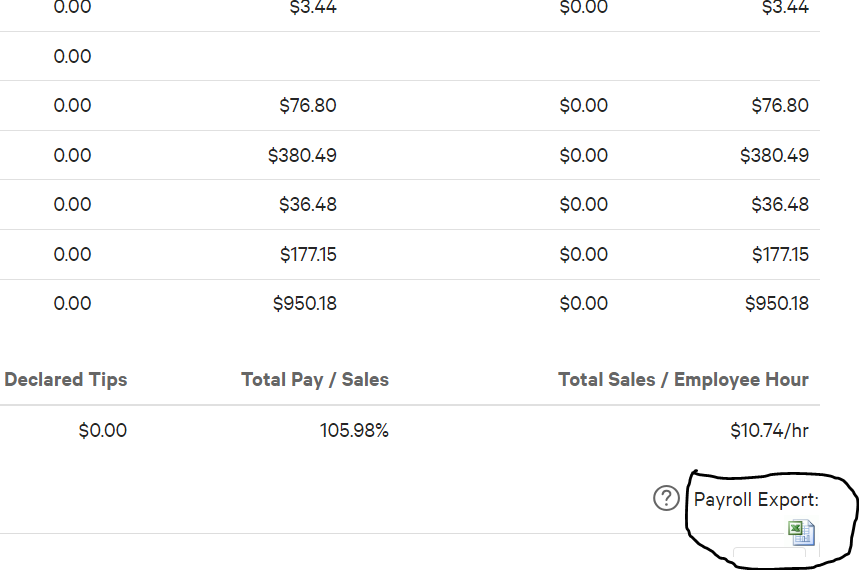
On Toast Backend, Head to Reports -> Employee Performance -> Labor Summary Once in the labor summary, select custom range for the date and enter in the pay period and make sure it’s for All Employees. Hit Update then scroll down slightly and click the excel icon to download the CSV.
Tip Reports CSV
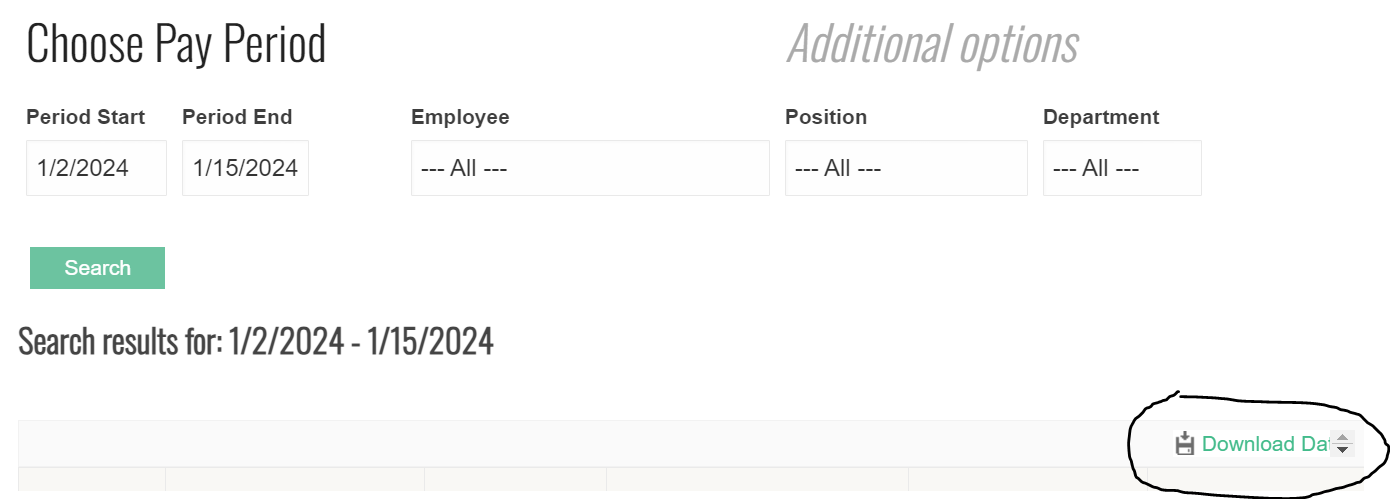
Once logged into Tip Reports, Under Manager menu Select Aloha / Micros / Toast -> Payroll File By First Name. Select the pay period, make sure it’s for all employees and then hit “search” One loaded, hit “Download Data.”
Payroll CSV
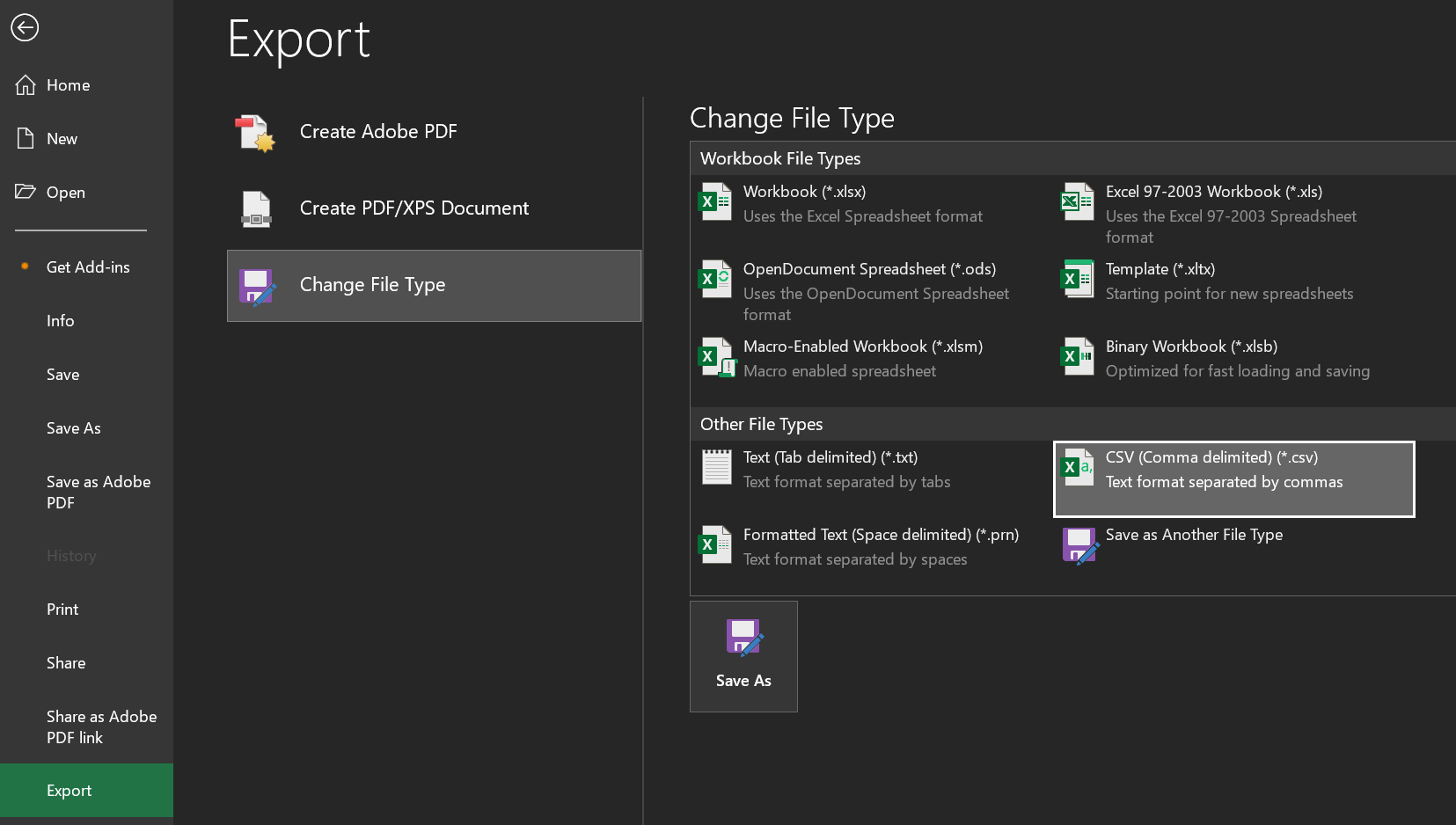
This file comes from potts. If it is sent in an excel spreadsheet, it needs to be converted to a .CSV file. To do this in word, hit File -> Export -> Change File Type -> CSV (Comma Seperated Value) Then save it. The payroll helper can only work in CSV files.